> For the complete documentation index, see [llms.txt](https://gallabox.gitbook.io/gallabox-docs/llms.txt). Markdown versions of documentation pages are available by appending `.md` to page URLs; this page is available as [Markdown](https://gallabox.gitbook.io/gallabox-docs/whatsapp-flows/create-whatsapp-forms/create-whatsapp-forms-with-template-builder.md).
# Create WhatsApp Forms with Template Builder
Easily design Flows using META's Message Templates. No coding required - simply drag and drop with the Form Editor. Get started today!
### Creating Flows in Facebook Business Manager
META provides the functionality to create Flows within the Message Templates. Within this UI you can create Flows using the drag and drop Form Editor, without having to write any JSON code yourself.
To create a flow via Message Template:
1. Go to Flows from the left navigation in your Gallabox Account. Click on "Create New Flow". A pop-up will appear, click on "Create flow" and you will be redirected to your Facebook Business Manager. Under Account Tools in Facebook Business Manager, click on WhatsApp Templates.
2. Click on Create a New Message Template. Choose from the categories- Marketing, utility, or authentication.
3. When you choose from any category, you will find a option - **form.** Select the Form option. Provide the name for your Message Template and select the language for the message. Click on continue button on the top right to move forward.
4. Enter the body text, button text, and select the type of Form you want. Click on Create.
5. A drag and drop UI will open up. You can edit the Label, use different type of buttons like text, multi-choice, or dropdown among more to create a form.
6. You can add another screen and use different button type and preview the flow.
7. Once you are done adding the desired screen, click on Save. The form will be saved in the WhatsApp Template. Confirm the language of the Message Template. The message templated will be created and sent for review.
{% hint style="info" %}
You will be able to see all the Forms created on Business Manager under WhatsApp Templates in Gallabox.
{% endhint %}
### Sync the Template with Gallabox
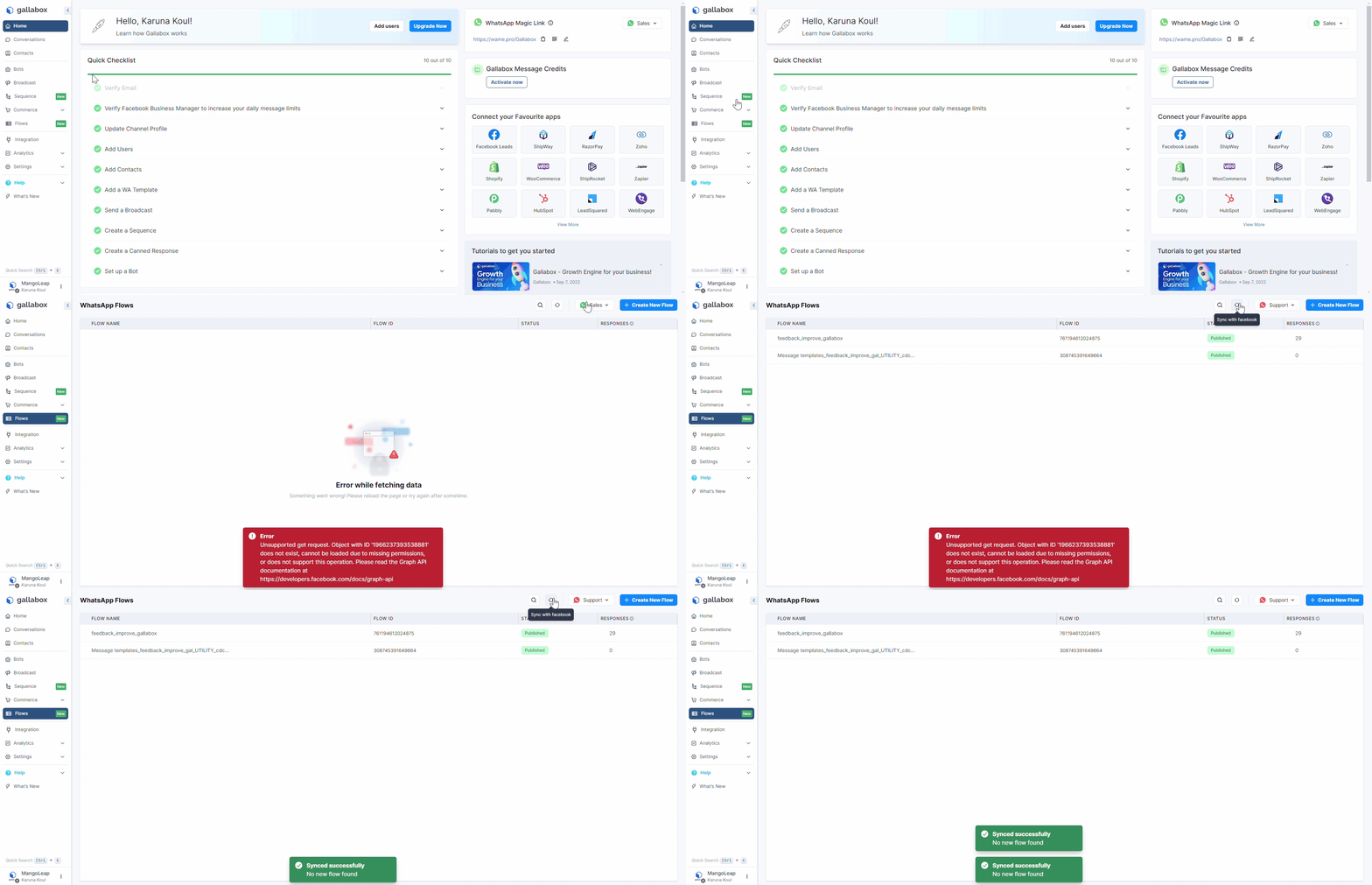
Once you have created a Flow you have to sync those with your Gallabox Account. To do so, you have to go to Flows and click on the button as shown in the GIF below.
{% hint style="warning" %}
If you are seeing the error, it means the channel you selected doesn't have permission for WhatsApp Flows. Kindly check your deployment option or select the right channel.
{% endhint %}
Once your flows are synced in your Gallabox account, the next step is to create a [WhatsApp Template using Flow](/gallabox-docs/whatsapp-flows/sending-a-whatsapp-form/send-whatsapp-form-in-a-message-template.md#add-flow-to-whatsapp-template) in Gallabox.
---
# Agent Instructions
This documentation is published with GitBook. GitBook is the documentation platform designed so that both humans and AI agents can read, navigate, and reason over technical content effectively. Learn more at gitbook.com.
## Querying This Documentation
If you need additional information that is not directly available in this page, you can query the documentation by asking a question.
Perform an HTTP GET request on the following URL with the `ask` and `goal` query parameters:
```
GET https://gallabox.gitbook.io/gallabox-docs/whatsapp-flows/create-whatsapp-forms/create-whatsapp-forms-with-template-builder.md?ask=&goal=
```
`ask` is the immediate question: it should be specific, self-contained, and written in natural language.
`goal` is what the user is ultimately trying to achieve, the reason they need the answer. Sharing it helps GitBook give you a better, more relevant answer. A goal is most helpful when it describes the outcome the user wants rather than restating the question. For example, with `ask=how do I create an API token`, a goal like `automate deployments from our CI pipeline` lets GitBook tailor the answer to that use case.
The response will contain a direct answer to the question and relevant excerpts and sources from the documentation.
Use this mechanism when the answer is not explicitly present in the current page, you need clarification or additional context, or you want to retrieve related documentation sections.


 as shown in the GIF below.